0) Pre-requisite
This tutorial requires Intel XDK software and hostinger.my hosting account.
1) Internal JSON Data
1.1) Create new Blank Project
Project Name = demoJsonData
index.html
<!DOCTYPE html>
<html>
<head>
<meta http-equiv="Content-type" content="text/html; charset=utf-8">
</head>
<body>
<p id="id01"></p>
<script>
var text = '{ "employees" : [' +
'{ "firstName":"John" , "lastName":"Doe" },' +
'{ "firstName":"Anna" , "lastName":"Smith" },' +
'{ "firstName":"Peter" , "lastName":"Jones" } ]}';
var obj = JSON.parse(text);
myFunction(obj);
function myFunction(arr) {
var out = "";
var i;
for(i = 0; i < arr.employees.length; i++) {
out += arr.employees[i].firstName +
arr.employees[i].lastName + '<br/>';
}
document.getElementById("id01").innerHTML = out;
}
</script>
</body>
</html>
|
example modified from: http://www.w3schools.com/json/tryit.asp?filename=tryjson_http and http://www.w3schools.com/json/myTutorials.txt

2) Internal JSON File
2.1) Create New Blank Project.
Project name: demoJsonFile
2.2) Create JSON text file , employees.txt
employees.txt
{
"employees":
[
{
"firstName": "John",
"lastName": "Doe"
},
{
"firstName": "Anna",
"lastName": "Smith"
},
{
"firstName": "Peter",
"lastName": "Jones"
}
]
}
|
2.3) Create index.html
<!DOCTYPE html>
<html>
<head>
<title>Blank Hybrid App Project Template</title>
<meta http-equiv="Content-type" content="text/html; charset=utf-8">
<meta name="viewport" content="width=device-width, initial-scale=1, user-scalable=no">
<script src="http://ajax.googleapis.com/ajax/libs/jquery/1.11.1/jquery.min.js"></script>
<script src="intelxdk.js"></script> <!-- phantom library, needed for XDK api calls -->
<script src="cordova.js"></script> <!-- phantom library, needed for Cordova api calls -->
<script src="xhr.js"></script> <!-- phantom library, needed for XDK CORS -->
<script src="js/app.js"></script>
<script src="js/init-app.js"></script>
<script src="js/init-dev.js"></script>
<script>
$(document).ready(function(){
$("button").click(function(){
$.ajax({url:"employees.txt",
success:function(result){
$("#testDiv").html(result);
}});
});
});
</script>
</head>
<body>
<h1 class="align-center">A Test Project</h1>
<br>
<p class="align-center">
<button>Touch Me</button>
<div id="testDiv"></div>
</p>
</body>
</html>
|

3) Remote JSON File
3.1) Create new Blank Project
Project name: demoJsonRemote
3.2) Copy the following codes to index.html
<!DOCTYPE html>
<html>
<head>
<title>Blank Hybrid App Project Template</title>
<meta http-equiv="Content-type" content="text/html; charset=utf-8">
<meta name="viewport" content="width=device-width, initial-scale=1, user-scalable=no">
<script src="http://ajax.googleapis.com/ajax/libs/jquery/1.11.1/jquery.min.js"></script>
<script src="intelxdk.js"></script> <!-- phantom library, needed for XDK api calls -->
<script src="cordova.js"></script> <!-- phantom library, needed for Cordova api calls -->
<script src="xhr.js"></script> <!-- phantom library, needed for XDK CORS -->
<script src="js/app.js"></script>
<script src="js/init-app.js"></script>
<script src="js/init-dev.js"></script>
<script>
$(document).ready(function(){
$("button").click(function(){
$.ajax({url:"http://www.w3schools.com/jquery/demo_test.txt",
success:function(result){
$("#testDiv").html(result);
}});
});
});
</script>
</head>
<body>
<h1 class="align-center">A Test Project</h1>
<br>
<p class="align-center">
<button>Touch Me</button>
<div id="testDiv"></div>
</p>
</body>
</html>
|

3.3) Change the url to “http://www.w3schools.com/json/myTutorials.txt”.

3.4) Modify your codes until you get the following output.

clue: modify the example shown in http://www.w3schools.com/json/tryit.asp?filename=tryjson_http
answer:
<!DOCTYPE html>
<html>
<head>
<title>Blank Hybrid App Project Template</title>
<meta http-equiv="Content-type" content="text/html; charset=utf-8">
<meta name="viewport" content="width=device-width, initial-scale=1, user-scalable=no">
<script src="http://ajax.googleapis.com/ajax/libs/jquery/1.11.1/jquery.min.js"></script>
<script src="intelxdk.js"></script> <!-- phantom library, needed for XDK api calls -->
<script src="cordova.js"></script> <!-- phantom library, needed for Cordova api calls -->
<script src="xhr.js"></script> <!-- phantom library, needed for XDK CORS -->
<script src="js/app.js"></script>
<script src="js/init-app.js"></script>
<script src="js/init-dev.js"></script>
<script>
$(document).ready(function(){
$("button").click(function(){
$.ajax({url:"http://www.w3schools.com/json/myTutorials.txt",
success:function(result){
var myArr = JSON.parse(result);
myFunction(myArr);
}});
});
});
function myFunction(arr) {
var out = "";
var i;
for(i = 0; i < arr.length; i++) {
out += '<a href="' + arr[i].url + '">' +
arr[i].display + '</a><br>';
}
$("#testDiv").html(out);
}
</script>
</head>
<body>
<h1 class="align-center">A Test Project</h1>
<br>
<p class="align-center">
<button>Touch Me</button>
<div id="testDiv"></div>
</p>
</body>
</html>
|
4) Putting Files On Web Server
4.1) Log on to hostinger website.

4.2) Find the section “Files” and find “Pengurus Fail” button.
Choose Install if required to do so.

4.3) Right-click the white space and choose New Folder.

Give the name “jsontest”

4.4) Create new file “myTutorials.txt” and copy-paste content from http://www.w3schools.com/json/myTutorials.txt .


[
{
"display": "JavaScript Tutorial",
"url": "http://www.w3schools.com/js/default.asp"
},
{
"display": "HTML Tutorial",
"url": "http://www.w3schools.com/html/default.asp"
},
{
"display": "CSS Tutorial",
"url": "http://www.w3schools.com/css/default.asp"
}
]
|
Test the output via Web Browser.

Edit the URL path in index.html
<!DOCTYPE html>
<html>
<head>
<title>Blank Hybrid App Project Template</title>
<meta http-equiv="Content-type" content="text/html; charset=utf-8">
<meta name="viewport" content="width=device-width, initial-scale=1, user-scalable=no">
<script src="http://ajax.googleapis.com/ajax/libs/jquery/1.11.1/jquery.min.js"></script>
<script src="intelxdk.js"></script> <!-- phantom library, needed for XDK api calls -->
<script src="cordova.js"></script> <!-- phantom library, needed for Cordova api calls -->
<script src="xhr.js"></script> <!-- phantom library, needed for XDK CORS -->
<script src="js/app.js"></script>
<script src="js/init-app.js"></script>
<script src="js/init-dev.js"></script>
<script>
$(document).ready(function(){
$("button").click(function(){
$.ajax({url:"http://notarazi.esy.es/jsontest/myTutorials.txt",
success:function(result){
var myArr = JSON.parse(result);
myFunction(myArr);
}});
});
});
function myFunction(arr) {
var out = "";
var i;
for(i = 0; i < arr.length; i++) {
out += '<a href="' + arr[i].url + '">' +
arr[i].display + '</a><br>';
}
$("#testDiv").html(out);
}
</script>
</head>
<body>
<h1 class="align-center">A Test Project</h1>
<br>
<p class="align-center">
<button>Touch Me</button>
<div id="testDiv"></div>
</p>
</body>
</html>
|

Example apps running on Samsung Note 3 Neo.

5) Put jQuery file into your project
5.1) Follow the URL to copy the jQuery codes.
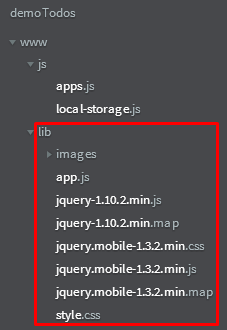
5.2) Create a folder “lib” then create a file “jquery.min.js”. Paste the codes into this file.

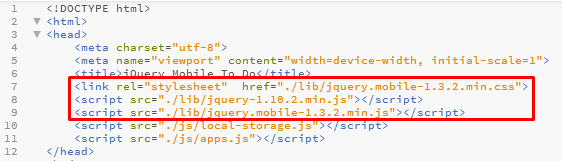
5.3) Edit index.html by changing the file reference to the new js file.

6) DOWNLOAD
6.1) demoJsonData: https://drive.google.com/file/d/0B86b-ALn-1MGbGVtbmhSbjhRNEF0SF93bXVhVjVRUUVIOTU4/view?usp=sharing
6.2) demoJsonFile: https://drive.google.com/file/d/0B86b-ALn-1MGOXZVb3hDVWN2dmxVVnl5WnZUcmVCaDVRT3JB/view?usp=sharing
6.3) demoJsonRemote: https://drive.google.com/file/d/0B86b-ALn-1MGYmlFbmMyNVVtcWM5Y3JJT2xfcGVnQUVkZnpZ/view?usp=sharing