-

- -

Showing posts with label xdk. Show all posts

Saturday, November 8, 2014

INTEL XDK 1494 APP STARTER TUTORIAL 4

---
INTEL XDK APP STARTER TUTORIAL 4

STEPS

1) Continue from the previous tutorial

2) Build the Android App

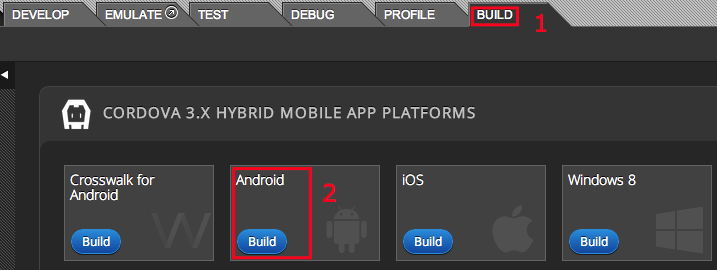
2.1) Go to BUILD Tab.
2.2) Select Android Button.
2.3) Intel XDK will upload the project to the server.
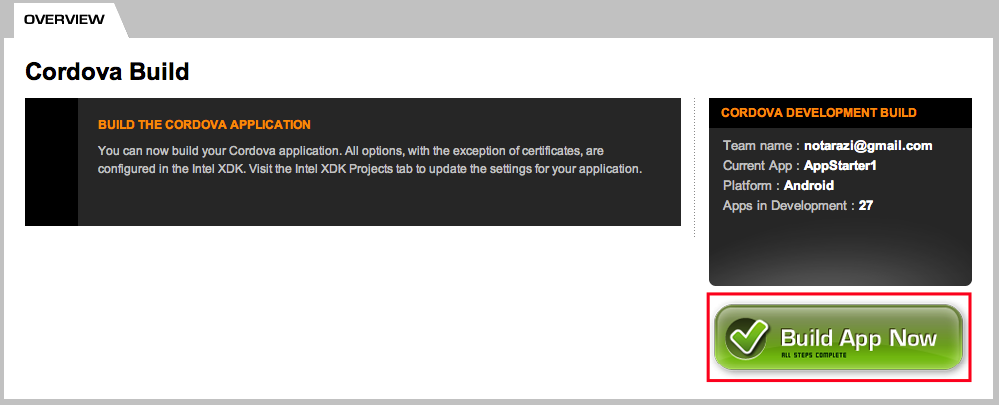
2.4) Click BUILD APP NOW Button.
2.5) Wait for the Build process to complete.
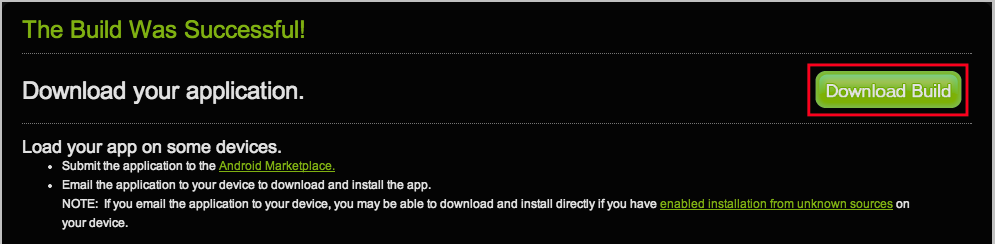
2.6) Download the APK file to your Android Device
2.7) Install using Package Installer
2.8) Enable Install From Unknown Sources
Your Android Device may not allow this kind of installation (install without Google App Store source). You have to Enable Install From Unknown Sources to bypass this restriction
---

Apache Cordova Camera API Basic Tutorial

---
Apache Cordova Camera API

Camera API

The camera object provides access to the device's default camera application.
Important privacy note: Collection and use of images from a device's camera raises important privacy issues. Your app'sprivacy policy should discuss how the app uses the camera and whether the images recorded are shared with any other parties. In addition, if the app's use of the camera is not apparent in the user interface, you should provide a just-in-time notice prior to your app accessing the camera (if the device operating system doesn't do so already). That notice should provide the same information noted above, as well as obtaining the user's permission (e.g., by presenting choices for "OK" and "No Thanks"). For more information, please see the Privacy Guide.
Methods:

STEPS

1) Browse the documentation page

2) Scroll down the page to find the Full Example

<!DOCTYPE html>
<html>
  <head>
    <title>Capture Photo</title>
    <script type="text/javascript" charset="utf-8" src="cordova.js"></script>
    <script type="text/javascript" charset="utf-8">
    var pictureSource;   // picture source
    var destinationType; // sets the format of returned value
    // Wait for device API libraries to load
    //
    document.addEventListener("deviceready",onDeviceReady,false);
    // device APIs are available
    //
    function onDeviceReady() {
        pictureSource=navigator.camera.PictureSourceType;
        destinationType=navigator.camera.DestinationType;
    }
    // Called when a photo is successfully retrieved
    //
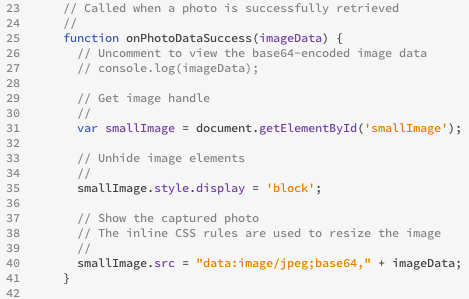
    function onPhotoDataSuccess(imageData) {
      // Uncomment to view the base64-encoded image data
      // console.log(imageData);
      // Get image handle
      //
      var smallImage = document.getElementById('smallImage');
      // Unhide image elements
      //
      smallImage.style.display = 'block';
      // Show the captured photo
      // The inline CSS rules are used to resize the image
      //
      smallImage.src = "data:image/jpeg;base64," + imageData;
    }
    // Called when a photo is successfully retrieved
    //
    function onPhotoURISuccess(imageURI) {
      // Uncomment to view the image file URI
      // console.log(imageURI);
      // Get image handle
      //
      var largeImage = document.getElementById('largeImage');
      // Unhide image elements
      //
      largeImage.style.display = 'block';
      // Show the captured photo
      // The inline CSS rules are used to resize the image
      //
      largeImage.src = imageURI;
    }
    // A button will call this function
    //
    function capturePhoto() {
      // Take picture using device camera and retrieve image as base64-encoded string
      navigator.camera.getPicture(onPhotoDataSuccess, onFail, { quality: 50,
        destinationType: destinationType.DATA_URL });
    }
    // A button will call this function
    //
    function capturePhotoEdit() {
      // Take picture using device camera, allow edit, and retrieve image as base64-encoded string
      navigator.camera.getPicture(onPhotoDataSuccess, onFail, { quality: 20, allowEdit: true,
        destinationType: destinationType.DATA_URL });
    }
    // A button will call this function
    //
    function getPhoto(source) {
      // Retrieve image file location from specified source
      navigator.camera.getPicture(onPhotoURISuccess, onFail, { quality: 50,
        destinationType: destinationType.FILE_URI,
        sourceType: source });
    }
    // Called if something bad happens.
    //
    function onFail(message) {
      alert('Failed because: ' + message);
    }
    </script>
  </head>
  <body>
    <button onclick="capturePhoto();">Capture Photo</button> <br>
    <button onclick="capturePhotoEdit();">Capture Editable Photo</button> <br>
    <button onclick="getPhoto(pictureSource.PHOTOLIBRARY);">From Photo Library</button><br>
    <button onclick="getPhoto(pictureSource.SAVEDPHOTOALBUM);">From Photo Album</button><br>
    <img style="display:none;width:60px;height:60px;" id="smallImage" src="" />
    <img style="display:none;" id="largeImage" src="" />
  </body>
</html>

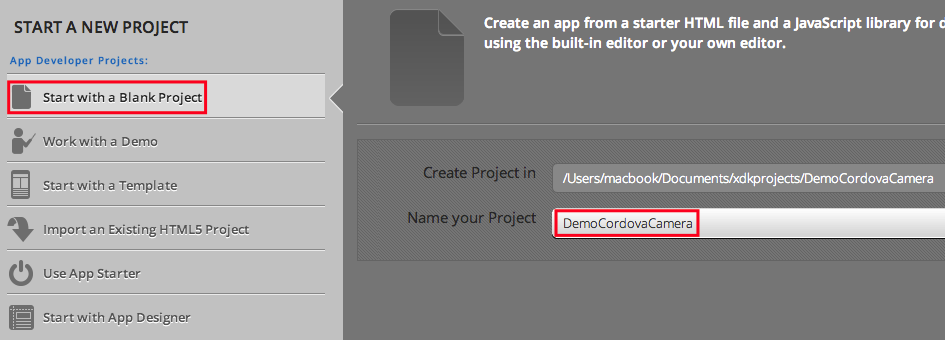
3) Run Intel XDK and create a new Blank Project

Type the project name as DemoCordovaCamera.

4) Replace the index file with the above codes

5) Debug the project

5.1) Connect Android device and launch project.
5.2) Observe the outcome

6) View the generated HTML codes

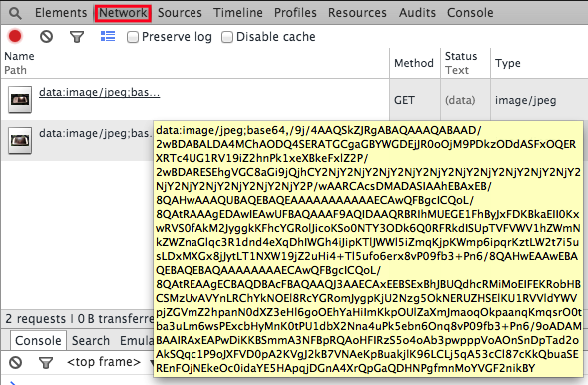
6.1) If you view the generated HTML codes in Elements tab, you will see that the image is represented as a String containing the base64-encoded photo image
6.2) The function onPhotoDataSuccess () has an image data as its argument.

7) DATA_URL and FILE_URI

This codes example demonstrates both DATA_URL and FILE_URI

8) Change DestinationType

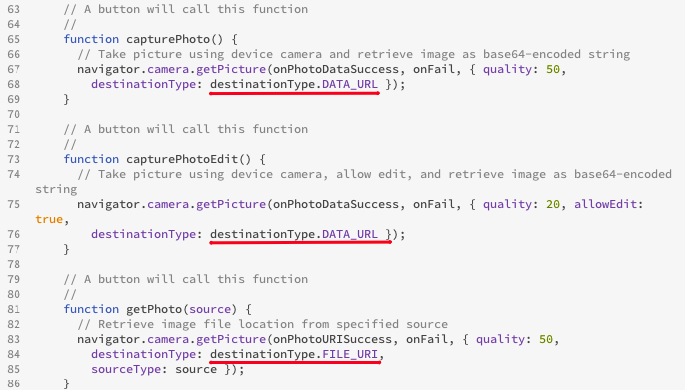
8.1) In the above code, on line no. 68, the captured image is coded as image data.
8.2) In order to save the image as file, we need to change destinationType value as destinationType.FILE_URI.
8.3) Change as follows:
8.4) You may get error in Debug window.
Since you have changed the value into a file path (FILE_URI) instead of image data (DATA_URL), the generated HTML becomes invalid.
8.5) To solve this issue temporarily, change the callback function to onPhotoURISuccess
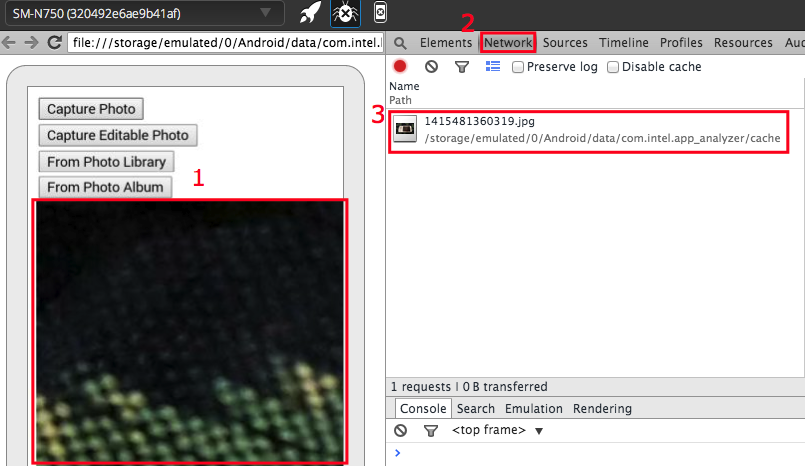
8.6) Errors has been fixed now.
Besides that, notice that the image is stored as file:///storage/emulated/0/Android/data/com.intel.app_analyzer/cache/{some numbers}.jpg

9) saveToPhotoAlbum option

The image that you have captured remains in the project storage and by default will not be included in the Photo Album.
9.1) To include the image in Photo Album, add another parameter, saveToPhotoAlbum:true.
---

Some projects using Intel XDK Camera Objects API

---
Some projects using Intel XDK Camera Objects

Project 1

summary: This project contains minimum codes to implement basic Camera functions using Intel XDK Camera Objects API
<!DOCTYPE html>
<html>
<head>
    <title>XDK Camera</title>
    <meta name="viewport" content="initial-scale=1.0, maximum-scale=1.0, minimum-scale=1.0, user-scalable=0;" />
   
    <link rel="stylesheet" type="text/css" href="http://cdn.app-framework-software.intel.com/2.0/af.ui.css" />
    <link rel="stylesheet" type="text/css" href="http://cdn.app-framework-software.intel.com/2.0/icons.css" />
    <script type="text/javascript" charset="utf-8" src="http://cdn.app-framework-software.intel.com/2.0/appframework.ui.min.js"></script>  
    <script src="intelxdk.js"></script>
    <script>
document.addEventListener("intel.xdk.device.ready", onDeviceReady, false);              
function onDeviceReady(){
    intel.xdk.device.hideSplashScreen();  
}
       
/* Camera */
function xdkStartCamera() {
    var onSuccess = function(event) {
        if (event.success == true){
            $('#xdk-camera-image').html("<img src="+intel.xdk.camera.getPictureURL(event.filename)+" width='250' />");
        }
    }
    document.addEventListener("intel.xdk.camera.picture.add", onSuccess);
    intel.xdk.camera.takePicture (70, true, "jpg");
}        
    </script>
    <style>
        body {font-family:arial;background-color:white}
    </style>    
</head>
<body>
<div id="afui">
    <div id="content" style="">
        <div class="panel" title="Camera" id="page1"  data-footer="none" selected="true">
            <a class="button icon camera" onclick="xdkStartCamera();" >Camera</a>
            <div id="xdk-camera-image"></div>
        </div>
    </div>
</div>
</body>
</html>    

Project 2

summary: This project demonstrates the use of Local Storage
<!DOCTYPE html>
<html><!--HTML5 doctype-->
<head>
<meta http-equiv="Content-type" content="text/html; charset=utf-8">
<meta name="viewport" content="width=device-width, initial-scale=1, maximum-scale=1, user-scalable=0">
<meta name="apple-mobile-web-app-capable" content="yes">
<meta http-equiv="Pragma" content="no-cache">
<script type="text/javascript" charset="utf-8" src="intelxdk.js"></script>
<script type="text/javascript" language="javascript">
    // This event handler is fired once the intel libraries are ready
    function onDeviceReady() {
        //hide splash screen now that our app is ready to run
        intel.xdk.device.hideSplashScreen();
        setTimeout(function () {
            $.ui.launch();
        }, 50);
    }
    //initial event handler to detect when intel is ready to roll
    document.addEventListener("intel.xdk.device.ready", onDeviceReady, false);
    document.addEventListener("intel.xdk.camera.picture.add",onSuccess);
    document.addEventListener("intel.xdk.camera.picture.busy",onSuccess);
    document.addEventListener("intel.xdk.camera.picture.cancel",onSuccess);
function capturePhoto() {
      intel.xdk.camera.takePicture(50,true,"jpg");
    }
function onSuccess(event)
{
    if (event.success === true)
    {
        var imagesrc = intel.xdk.camera.getPictureURL(event.filename);
        var pic1 = document.getElementById("pic1");
        pic1.src = imagesrc;
        localStorage.imagesrc = imagesrc;
   }
    else
    {
        if (event.message !== undefined)
        {
            alert(event.message);
        }
        else
        {
            alert("error capturing picture");
        }
    }
}
function showPicture()
{
    var picture = document.getElementById("pic2");
    var pic1src = localStorage.imagesrc;
    picture.src = pic1src;
    document.form2.locationview.value = localStorage.location;
    document.form2.titleview.value = localStorage.title;
    document.form2.metadataview.value = localStorage.metadata;
}
function saveForm()
    {
    localStorage.location = document.form1.location.value;
    localStorage.title = document.form1.title.value;
    localStorage.metadata = document.form1.metadata.value;    
    }
function updateForm()
    {
    localStorage.location = document.form2.locationview.value;
    localStorage.title = document.form2.titleview.value;
    localStorage.metadata = document.form2.metadataview.value;      
    }
function showStorage()
    {
    document.getElementById("page_3").innerHTML = localStorage.location;
    }
</script>
<script src="js/appframework.ui.min.js"></script>
<script>
    $.ui.autoLaunch = false;
    $.ui.useOSThemes = true; //Change this to false to force a device theme
    $.ui.blockPageScroll();
    $(document).ready(function () {
        if ($.ui.useOSThemes && !$.os.ios && $("#afui").get(0).className !== "ios")
            $("#afui").removeClass("ios");
    });
</script>
<link href="css/icons.css" rel="stylesheet" type="text/css">
<link href="css/af.ui.css" rel="stylesheet" type="text/css">
</head>
<div id="afui" class="ios">
    <div id="header"></div>
    <div id="content" style="">
        <div class="panel" title="PhotoTagger" data-nav="nav_0" id="main" selected="selected"
        style="background-image: url(images/splash.jpg);"
        data-appbuilder-object="page" data-footer="footer_1">
            <div class="centerbutton">
                <a class="button" href="#page_1" data-appbuilder-object="button" data-transition="slide"
                id="button_1" onclick="capturePhoto();">Store data in EXIF</a>
            </div>
        </div>
        <div class="panel" title="Take Picture" data-nav="nav_0" id="page_1" data-appbuilder-object="page"
        style="" data-footer="footer_1">
            <form style="width: 100%;min-height: 50px;" data-appbuilder-object="form" class=""
            id="form1" name="form1">
                <img src="images/EmptyBox-Phone.png" id="pic1" width="150px" height="200px">
                <div class="input_element form_element" style="width:100%;overflow:hidden" data-appbuilder-object="input">
                    <label for="">Location</label>
                    <input type="text" style="float:left;" id="location" placeholder="">
                </div>
                <div class="input_element form_element" style="width:100%;overflow:hidden" data-appbuilder-object="input">
                    <label for="">Title</label>
                    <input type="text" style="float:left;" id="title" placeholder="">
                </div>
                <div class="textarea_element form_element" style="width:100%;overflow:hidden" data-appbuilder-object="textarea">
                    <label for="">MetaData</label>
                    <textarea id="metadata"></textarea>
                </div>
                <a class="button" href="#" style="" data-appbuilder-object="button" data-transition="slide"
                id="" onclick="saveForm();">Save</a>
            </form>
        </div>
        <div class="panel" title="View Picture" data-nav="nav_0" id="page_2" data-appbuilder-object="page"
        style="" data-footer="footer_1">
            <form style="width: 100%;min-height: 50px;" data-appbuilder-object="form" class=""
            id="form2" name="form2">
                <img src="images/EmptyBox-Phone.png" id="pic2" width="150px" height="200px" style=""
                class="">
                <div class="input_element form_element" style="width:100%;overflow:hidden" data-appbuilder-object="input">
                    <label for="">Location</label>
                    <input type="text" style="float:left;" id="locationview" placeholder="">
                </div>
                <div class="input_element form_element" style="width:100%;overflow:hidden" data-appbuilder-object="input">
                    <label for="">Title</label>
                    <input type="text" style="float:left;" id="titleview" placeholder="">
                </div>
                <div class="textarea_element form_element" style="width:100%;overflow:hidden" data-appbuilder-object="textarea">
                    <label for="">MetaData</label>
                    <textarea id="metadataview"></textarea>
                </div>
                <a class="button" href="#" style="" data-appbuilder-object="button" data-transition="slide"
                id="" onclick="updateForm();">Update</a>
            </form>
        </div>
        <div class="panel" title="Test Local Storage" data-footer="footer_1" data-nav="nav_0"
        id="page_3" data-appbuilder-object="page" style=""></div>
    </div>
    <div id="navbar"> <a href="#main" class="icon home">Home</a>
    </div>
    <header id="header_0" data-appbuilder-object="header">
        <a id="backButton" href="#" class="button back" style="visibility: visible; ">Back</a>
        <h1 id="pageTitle" class="">PhotoTagger</h1>
    </header>
    <nav id="nav_0" data-appbuilder-object="nav">
        <h1>Side Menu</h1>
    </nav>
    <footer id="footer_1" data-appbuilder-object="footer"><a href="#main" class="icon home">Home</a><a href="#page_1" class="icon camera"
        onclick="capturePhoto();">Take Picture</a>
        <a href="#page_2" class="icon picture" onclick="showPicture();">View Pictures</a>
        <a href="#page_3" class="icon database" onclick="showStorage();">Local Storage</a>
    </footer>
</div>
</html>

Project 3

summary: this project allows user to capture photo, get them displayed as catalogs and provides option to clear photo storage.
<!DOCTYPE html><!--HTML5 doctype-->
<html>
<head>
   <title>Your New Application</title>
   <meta http-equiv="Content-type" content="text/html; charset=utf-8">
   <meta name="viewport" content="width=device-width, initial-scale=1.0, maximum-scale=1.0, minimum-scale=1.0, user-scalable=0" />
   <style type="text/css">
      /* Prevent copy paste for all elements except text fields */
      *  { -webkit-user-select:none; -webkit-tap-highlight-color:rgba(255, 255, 255, 0); }
      input, textarea  { -webkit-user-select:text; }
      body { background-color:white; color:black }
   </style>
   <script src='intelxdk.js'></script>
   <script type="text/javascript">
    document.addEventListener("intel.xdk.device.ready", onDeviceReady,false);
    document.addEventListener("intel.xdk.camera.picture.add", onSuccess);
    document.addEventListener("intel.xdk.camera.picture.busy", onSuccess);
    document.addEventListener("intel.xdk.camera.picture.cancel", onSuccess);
    document.addEventListener("intel.xdk.camera.picture.clear", loadPictures);
    function capturePicture() {
      intel.xdk.camera.takePicture(80, true, "jpg");
    }
    function onSuccess(evt) {
      if (evt.success == true) {
        // create image
        var image = document.createElement('img');
        image.src = intel.xdk.camera.getPictureURL(evt.filename);
        image.id = evt.filename;
        image.width = 100;
        document.getElementById('pictures').appendChild(image);
      }
    }
   
    function clearPictures(){
      intel.xdk.camera.clearPictures();
     
      // Also tried these just in case, but no success
      intel.xdk.cache.clearMediaCache();
      intel.xdk.cache.clearAllCookies();
    }
   
    function loadPictures(){
      document.getElementById('pictures').innerHTML = "";
     
      var arrPictureList = intel.xdk.camera.getPictureList();
      for (var x=0;x<arrPictureList.length;x++)
      {
        // create image
        var newImage = document.createElement('img');
        newImage.src=intel.xdk.camera.getPictureURL(arrPictureList[x]);
        newImage.width = 100;
        newImage.id=document.getElementById("img_" + arrPictureList[x]);
        document.getElementById('pictures').appendChild(newImage);
      }
    }
   
      function onDeviceReady(){
        intel.xdk.device.hideSplashScreen();
      loadPictures();
      }
   </script>
</head>
<body>
   
  <a href="#" id="capture-btn" onClick="capturePicture()">Capture Picture</a> |
  <a href="#" id="clear-btn" onClick="clearPictures()">Clear Pictures</a>

  <hr>

  <h1>Pictures</h1>

  <div id="pictures"></div>

</body>
</html>
---